It was very important for us to get answers about what marketing efforts were working and where should we spend more time and effort to enable more Shopify merchants to discover our app. So setting up Google Analytics (UA-XXXXX) in our Shopify app listing was the first step and it was super easy to do.
More, we really wanted to determine how many merchants are actually clicking the [Add app] button on the Shopify app listing page from the total visitors on our app FAQ+Contact us+Track+Share.
Google Analytics Setup
You must first track traffic and page views with GA before you can begin tracking the source of install on your Shopify app listing. If you've already linked your Google Analytics account to your app listing, you can skip ahead.
If your website uses Google Analytics, you can set up a separate property for your app listing.
Your app listing is on a different domain, and by keeping it in a separate GA property, you'll have a better understanding of what visitors do across your various online properties.
How to add a new property (Shopify app listing only supports Universal Analytics code UA-XXXX format)
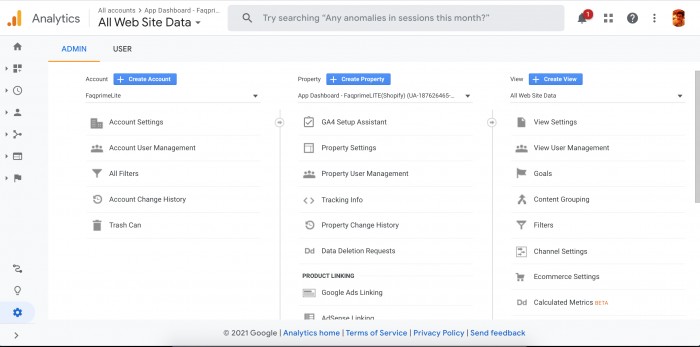
Log in to your GA account and open the admin panel by clicking the gear icon in the bottom left corner of the screen. A blue button [+ Create Property] can be found next to the Property column in the middle.
When you create a new property, it will be given a unique tracking ID that differs slightly from your account's ID.
To get your special GA Tracking ID, go to your GA admin page, click on “> Tracking Info” in the middle column, and then the “Tracking Code” option from the drop-down. Make a copy or a note of it.